 LaserMap
How to make a laser cut city map
This guide takes you from an empty screen to a map on your laser bed: finding the place, sizing the piece, choosing layers and text, and setting up the SVG in LightBurn. It takes about fifteen minutes the first time.
1Find your place
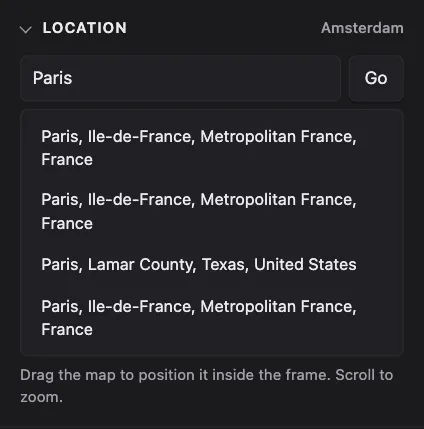
Open the editor and type a city, a street address or a landmark in the Location box, then press Enter. When there are several matches, pick the right one from the list.
You can also enter coordinates, latitude first, like 48.8584, 2.2945. You can copy these
from most online maps.
2Set the size and shape
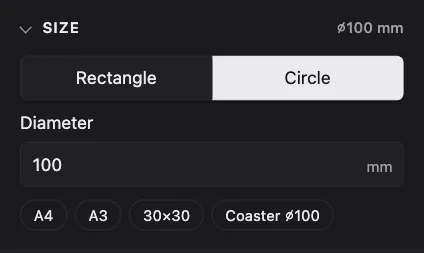
In Size, choose Rectangle or Circle and enter the size of the finished piece in millimetres. The ⇄ button swaps width and height. Presets cover A4, A3, a 30×30 cm board and a 100 mm coaster.
The frame on the map follows your size, so the dimmed area is what will not be exported.
3Position the map
Drag the map to move it and scroll (or pinch) to zoom. The frame stays in the same place on screen, so you slide the city underneath it. Zooming in shows more detail such as small streets and buildings; zooming out fits more of the city.
4Choose layers and colors
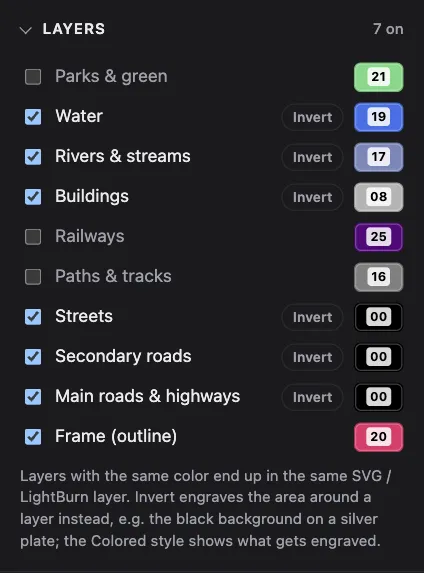
Tick the layers you want: water, rivers and streams, buildings, parks, railways, paths and three road levels. Click a color swatch to change a layer's color. The number on the swatch is the LightBurn layer it will land on (for example 00 is black, 01 blue, 02 red).
Layers that share a color become one layer in the SVG. That is handy: give all roads the same color to engrave them in one pass, and keep the Frame on its own color for cutting.
The editor starts with a short setup: pick a style, search a place and choose whether to put the city name on the map. Afterwards the Style section in the sidebar switches between Wood (engraved plywood), Edge lit (glowing acrylic), Silver (brushed metal under black) and Colored (the layer colors themselves). The style only changes the preview; the SVG always uses the layer colors.
Edge lit and Silver have just two tones, engraved or not, so choosing one of them puts all map layers and text on one color (00) to engrave in a single pass, with the frame still on its own color for cutting. Switching back to Wood or Colored restores a color per layer.
Invert next to a layer engraves the area around its shapes instead of the shapes. On a silver plate where the laser blackens the metal, invert all map layers: the background is engraved and the streets, water and buildings stay silver. Roads keep the width they have on screen. The material styles keep showing the finished piece; Colored shows what the laser engraves.
5Add text
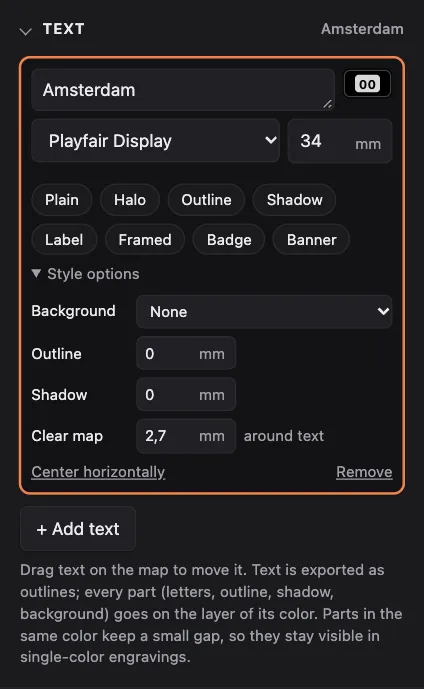
Click + Add text. The first text gets the map's name; type anything you like, including several lines. Choose one of ten fonts, set the size in mm and drag the text on the map to move it. It snaps to the center lines.
Pick a style to keep the text readable on top of the map:
| Style | What it does |
|---|---|
| Halo | Clears the map around the letters (the default). |
| Outline | Adds a line around the letters. |
| Shadow | Adds an offset drop shadow. |
| Label | Cuts the letters out of a filled, rounded plate. |
| Framed / Badge | Puts the text in a cleared box or pill with a thin border. |
| Banner | Cuts the letters out of a band across the whole map. |
Under Style options you can change the padding, outline width, shadow distance and the color of each part. Parts that share a color keep a small gap, so they stay separate in a one-color engraving.
6Export the SVG
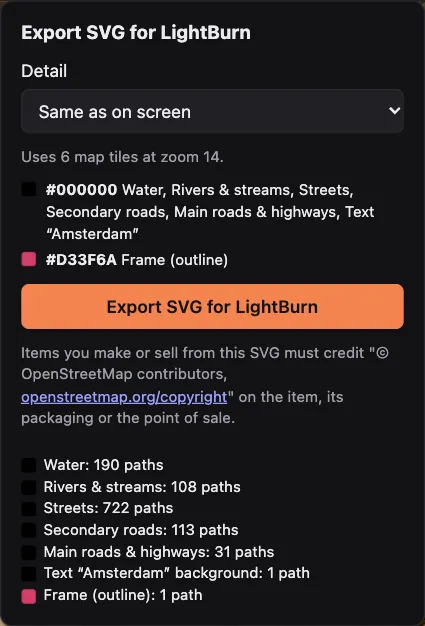
Export SVG at the top right opens the export options, with a list of which layers end up in which color. Detail controls how much small detail is included: Same as on screen matches the preview; higher levels add small streets and buildings for large pieces.
Click Export SVG for LightBurn. The map data is downloaded and processed in your browser; after a few seconds the SVG is saved to your downloads.
7Set up LightBurn and cut
- In LightBurn, use File → Import and choose the SVG. It comes in at the size you set in LaserMap.
- The Cuts / Layers window shows one layer per color.
-
Set each layer's mode:
- Fill for areas such as water, buildings, parks and text, to engrave them.
- Line for streets, rivers and railways, to score them as thin lines.
- Line with cutting power for the Frame, to cut the piece out.
- Run the frame (cut) layer last, so the piece doesn't move while it is being engraved.
- Do a test on scrap material first to find the right speed and power for your machine.
?Tips and troubleshooting
“This area needs too many tiles”
The area is too large for the chosen detail level. Zoom in a little or choose a lower detail level.
The text is hard to read
Use Halo, Label or Banner. Bold fonts such as Bebas Neue, Montserrat and Abril Fatface engrave best at small sizes.
Lines are too close together
Switch off minor streets and paths, or zoom out less. What looks fine on screen can merge on wood at small sizes.
Single-color engraving
Give every layer and the text the same color (for example black, layer 00) and keep the frame on a second color for cutting. Text styles keep gaps between parts automatically.