Turn any city into a laser-ready map

Pick a place, choose which streets, water and buildings to show, give every layer its own color and add the city name. LaserMap exports a layered SVG that you can cut or engrave straight from LightBurn.

✓ Unlimited SVG downloads ✓ No watermark ✓ No account required ✓ No subscription

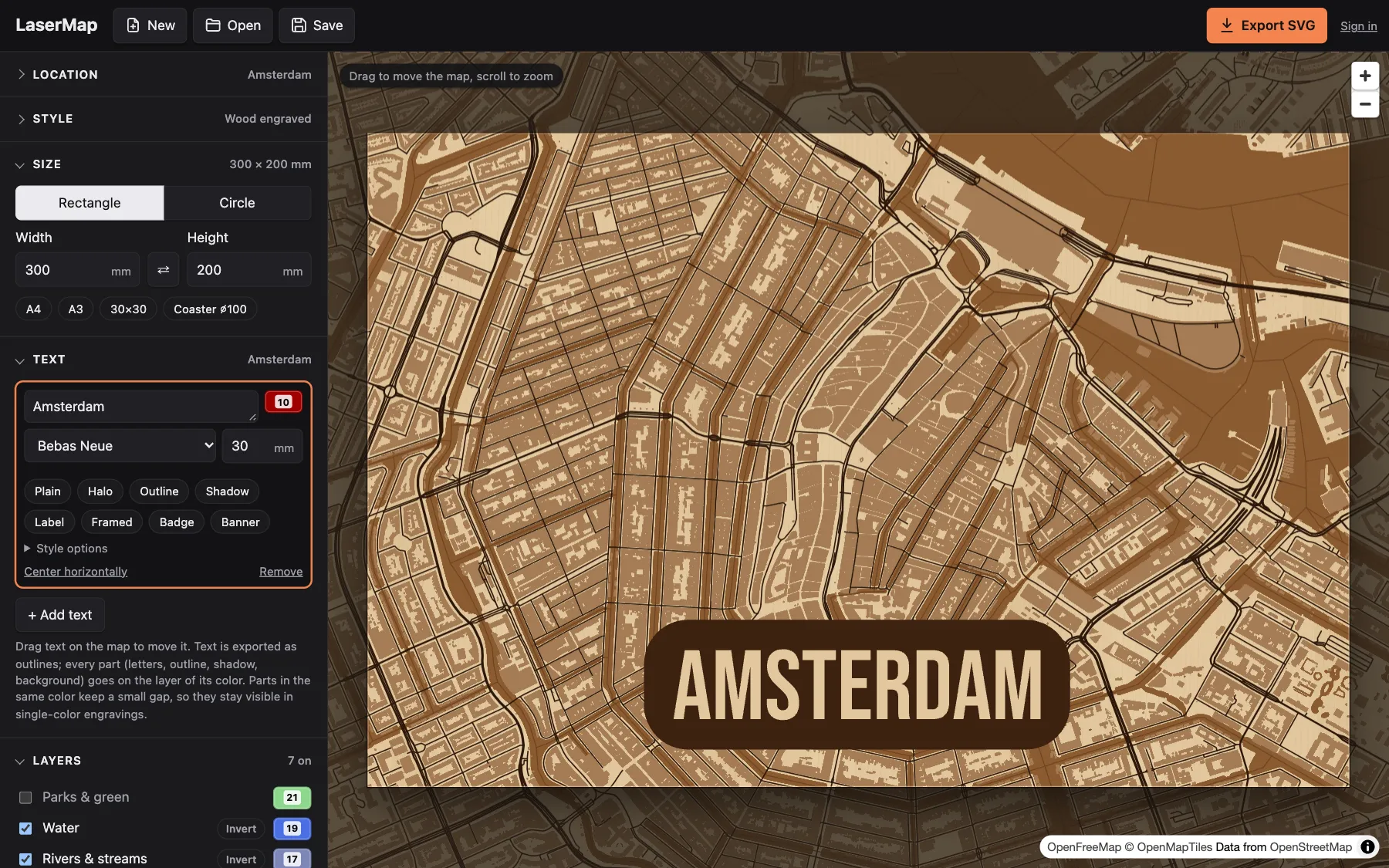
The LaserMap editor showing a map of central Amsterdam previewed as an engraving on plywood, with the word Amsterdam on a label and the layer list on the left
  • Layered SVGOne SVG layer per color, ready for LightBurn.
  • Sized in millimetresSet the exact size of your board or coaster.
  • Clean shapesClosed areas for engraving, lines for scoring, a frame for cutting.
  • Free, without limitsDownload as many SVGs as you like. No account required, no watermark.

Made with a LaserMap SVG

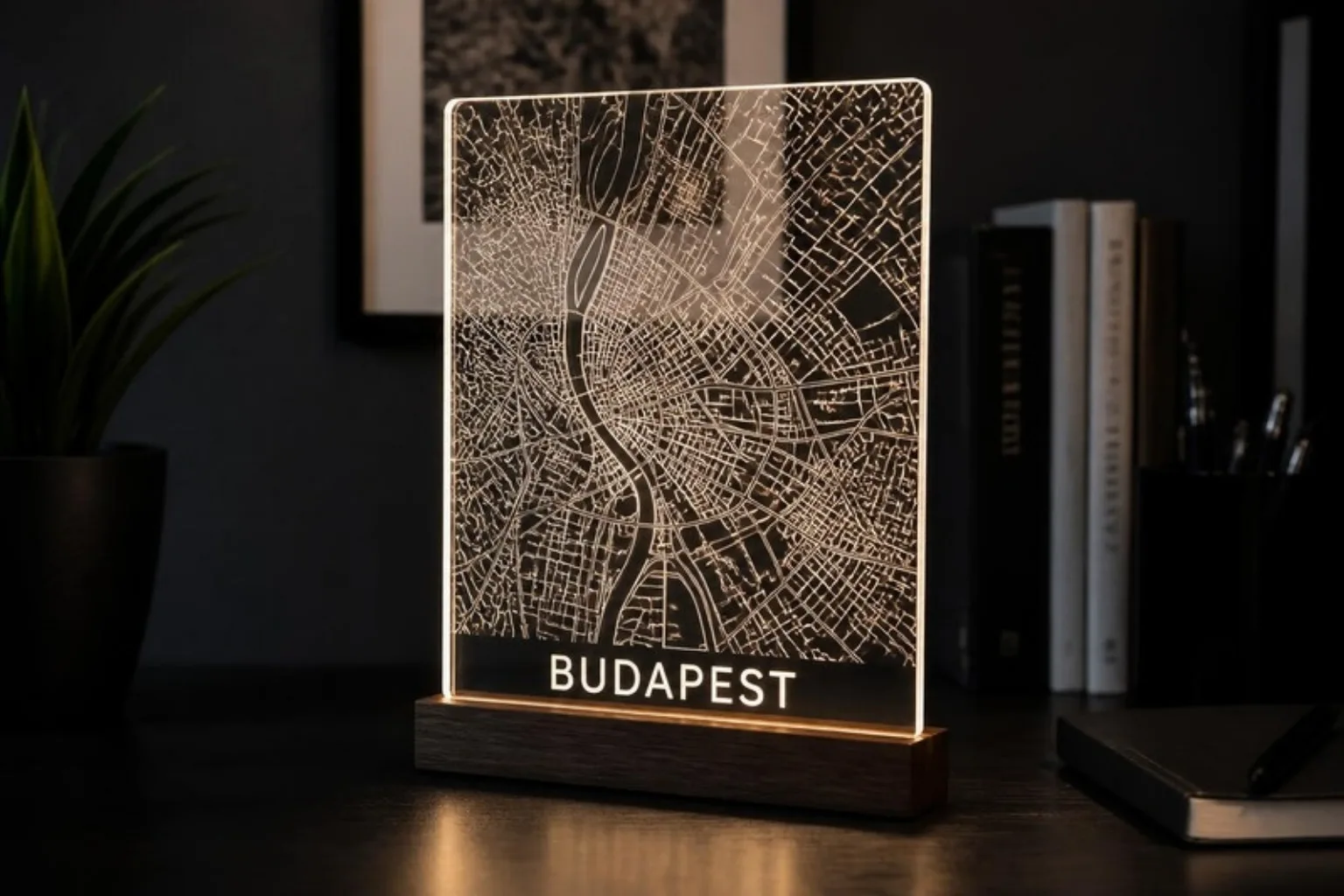
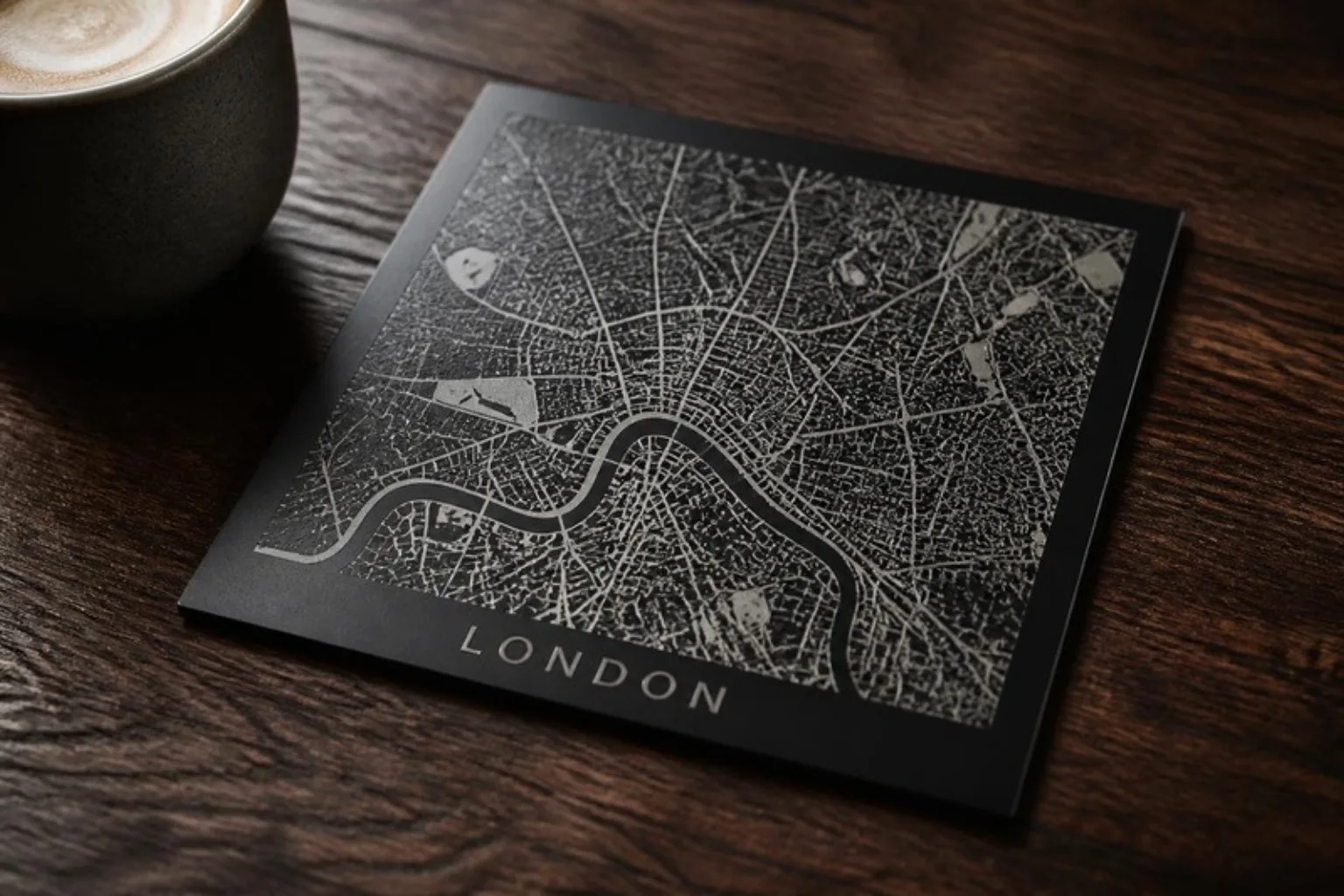
Two ways to turn the export into a finished piece: engrave the lines into clear acrylic and light the edge, or engrave through a black coating so the streets come out in silver.

Everything you need for a laser cut map

LaserMap is made for laser cutters and engravers: no pixels, no cleanup in a vector program. What you see on the screen is what ends up in the file.

Any place on earth

Type a city, an address or coordinates such as 52.37, 4.89. Drag and zoom the map until the part you want sits inside the frame. Your hometown, the city where you met, a favourite holiday spot: if it's on OpenStreetMap, you can cut it.

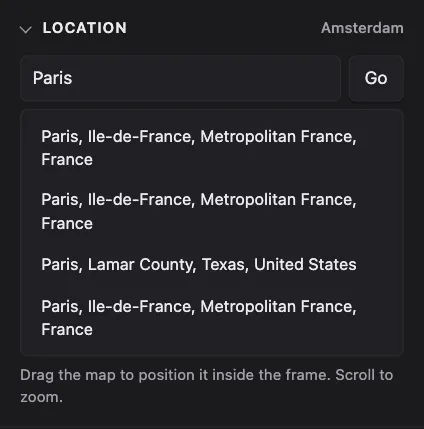
Searching for Paris in LaserMap shows a list of matching places

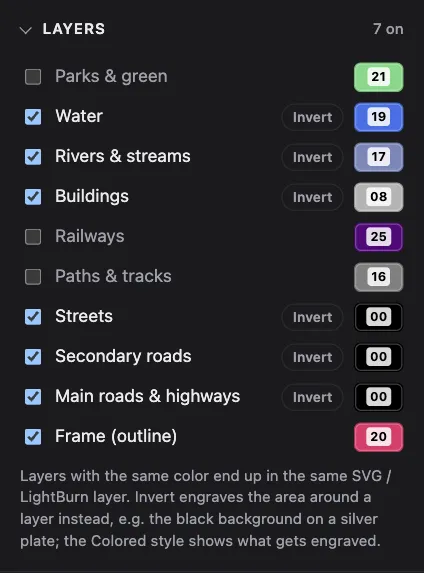
Choose layers, give each its own color

Switch water, rivers, buildings, parks, railways, paths and three levels of roads on or off. Every layer gets a color, and every color becomes a layer in the SVG.

  • The color picker uses LightBurn's own layer colors, so layers map one-to-one.
  • Give several map layers the same color to merge them into one laser layer.
  • A frame layer outlines the piece, ready to cut out.
The layer list with checkboxes for water, rivers, buildings, railways, paths, streets, roads and frame, each with a LightBurn color number

Text that stays readable, even in one color

Add the city name, a date or coordinates in one of ten fonts and drag it into place. Styles keep the text readable on a busy map:

  • Halo clears the map around the letters.
  • Outline and Shadow add a line or a drop shadow.
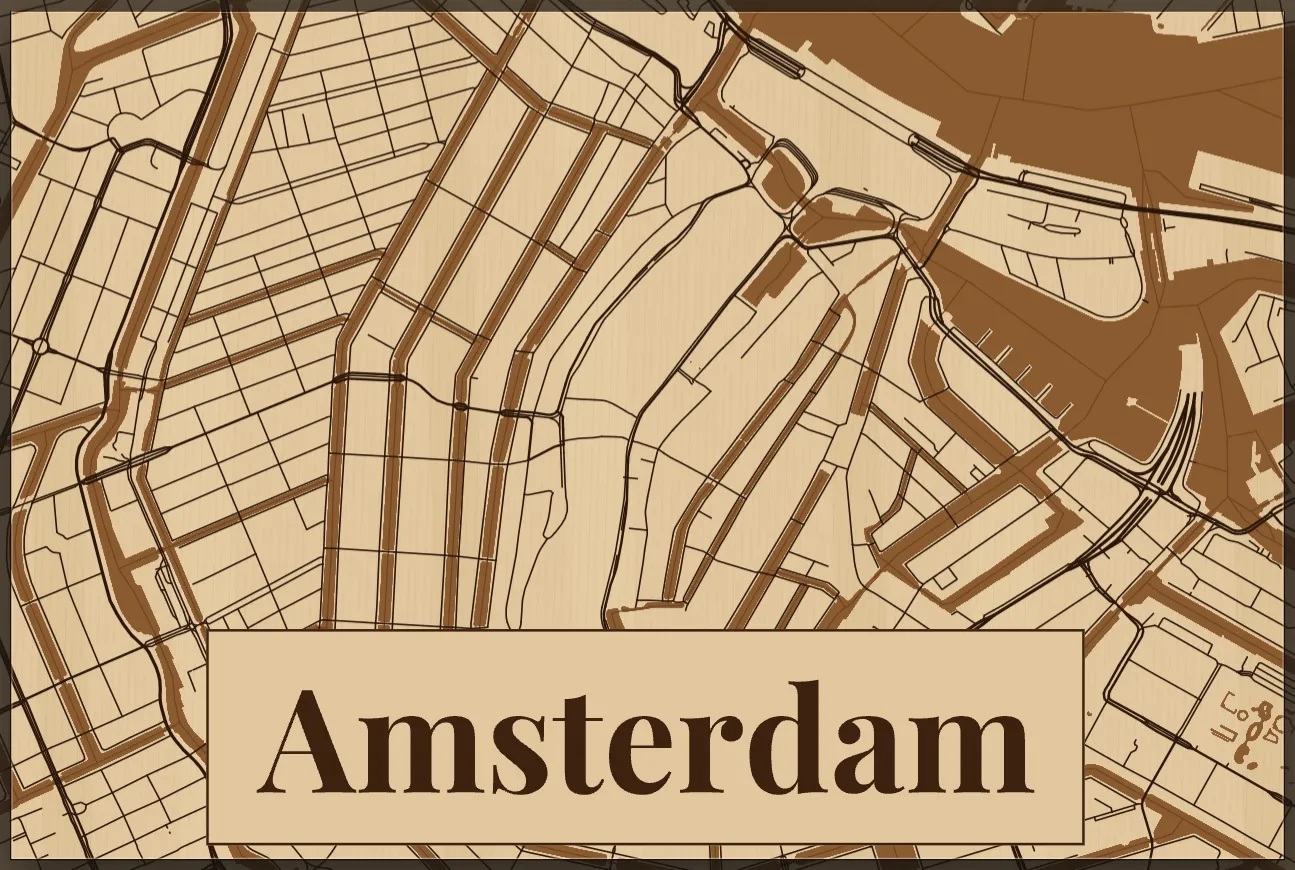
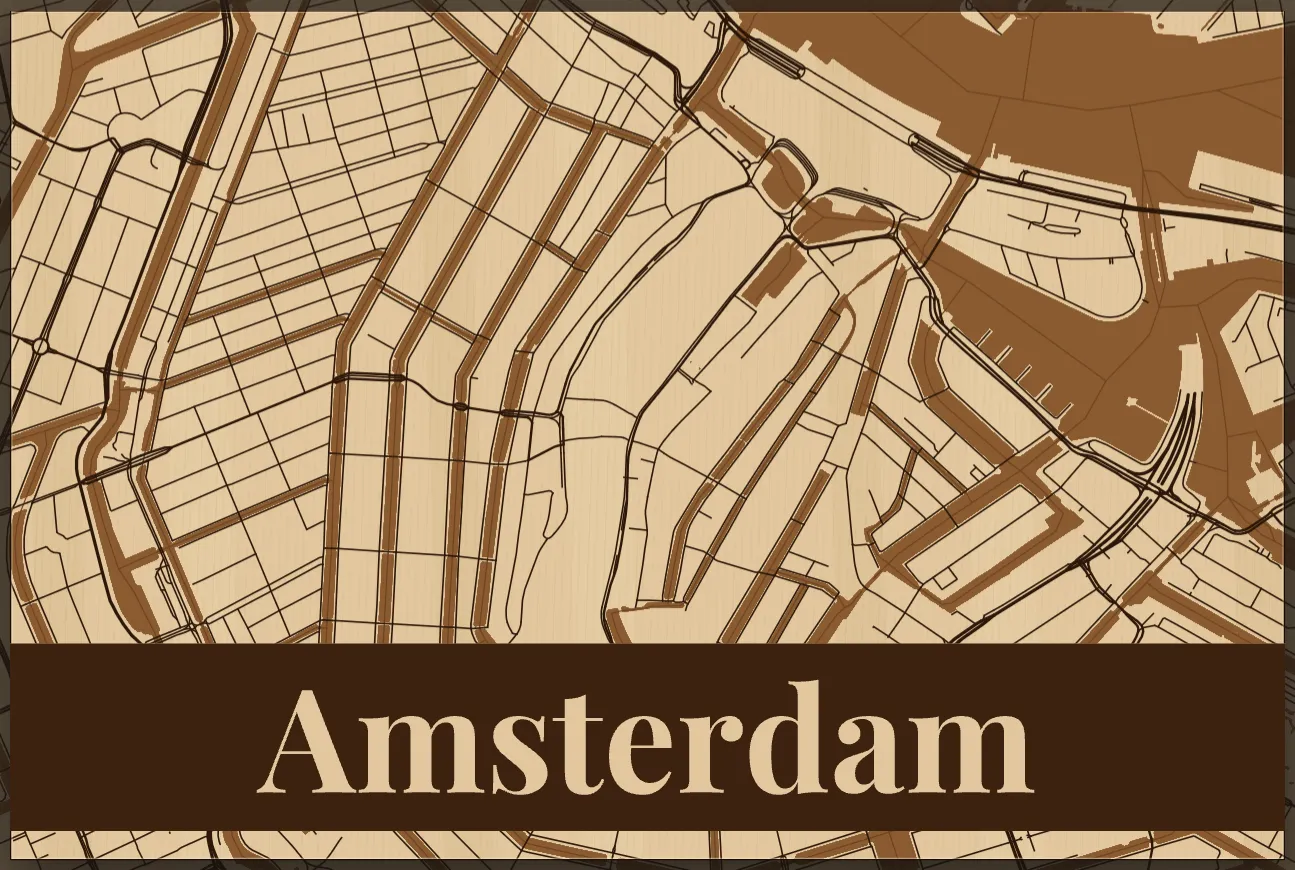
  • Label, Framed, Badge and Banner put the text on or in a shape.

Parts that share a color keep a small gap, so a black-and-white engraving still shows every edge.

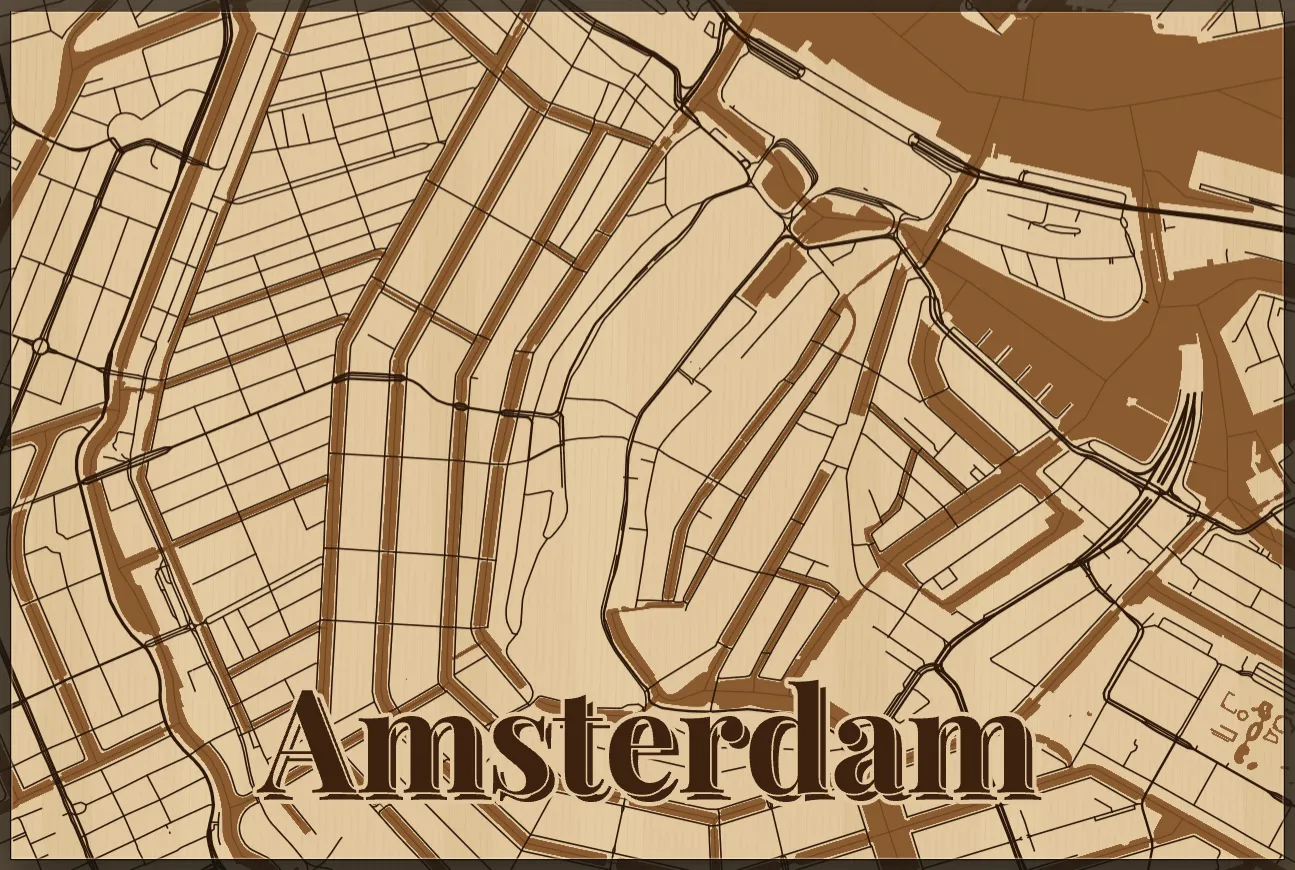
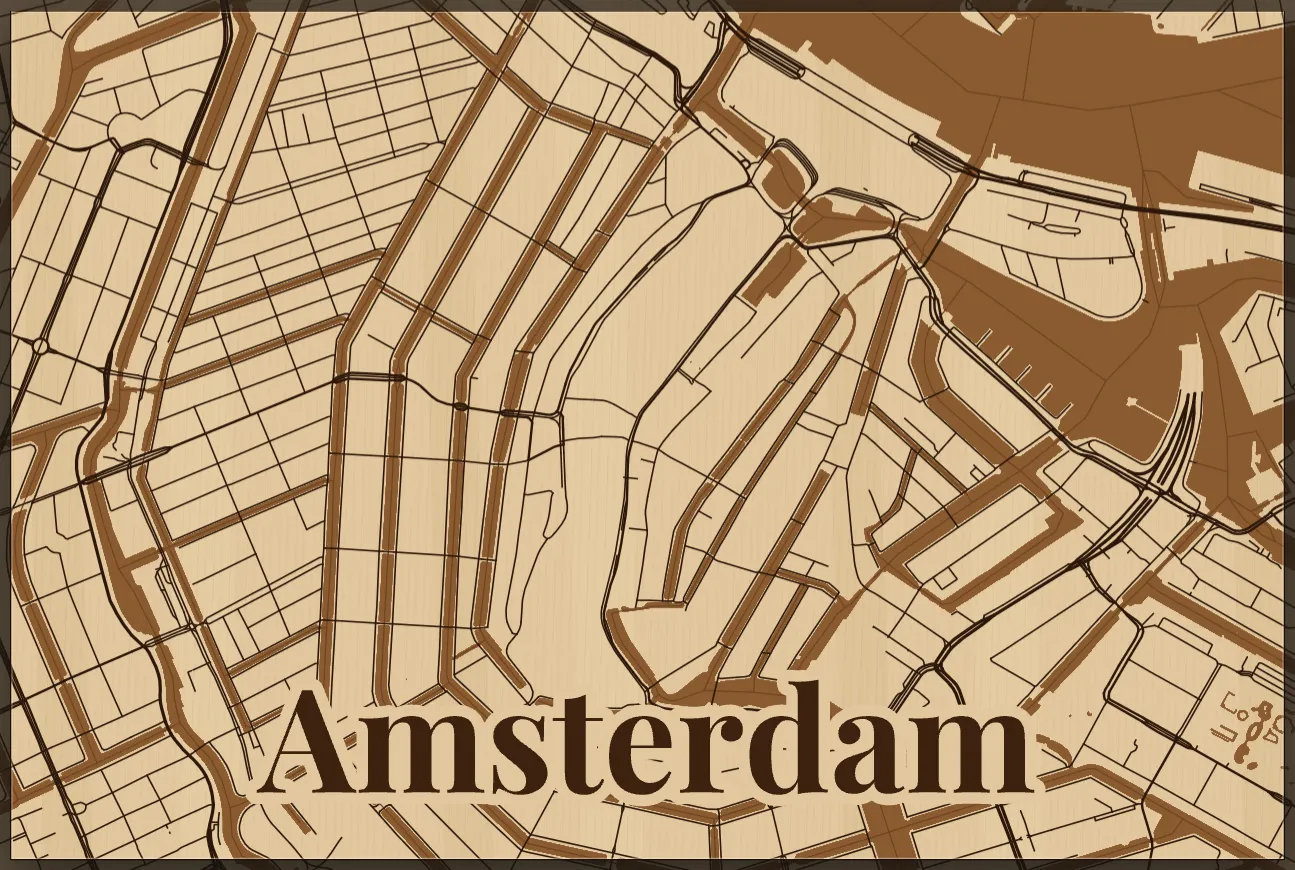
A map of Amsterdam engraved on plywood with the word Amsterdam in a serif font with a drop shadow; the map is cleared around the letters
Single-color design with the Shadow style

Rectangles, squares and round coasters

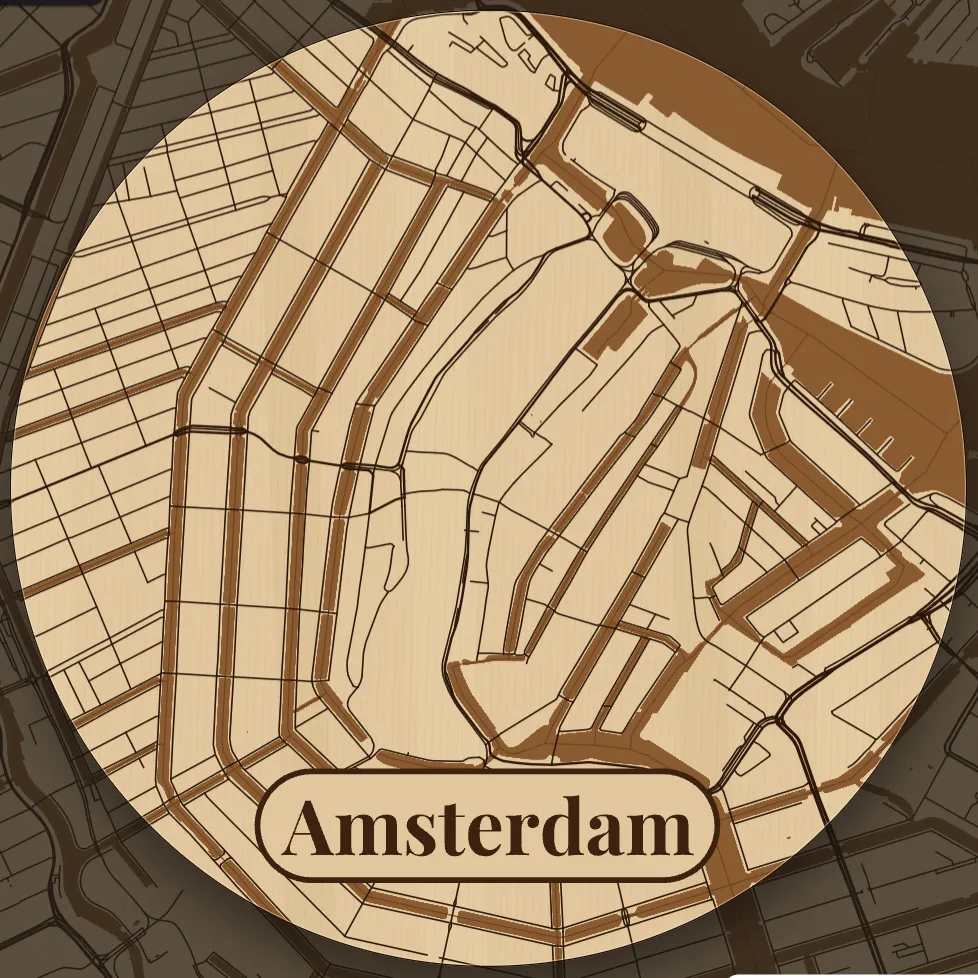
Set the width and height in millimetres, or switch to a circle for coasters and ornaments. Presets for A4, A3, 30×30 cm and a 100 mm coaster get you started; the frame on the map shows exactly what will be exported.

A round map of Amsterdam for a 100 mm coaster, engraved on plywood, with the city name in a pill-shaped badge

An SVG your laser software understands

The export is built for laser work, not just for looking at:

  • Real size in millimetres, so it imports at the right scale.
  • One layer per color, named after the map layers it contains.
  • Water, buildings and parks are closed shapes, merged where map tiles meet, so fills engrave cleanly.
  • Roads are joined into long paths, which keeps travel time down.
  • Text is converted to outlines; no fonts needed on your computer.
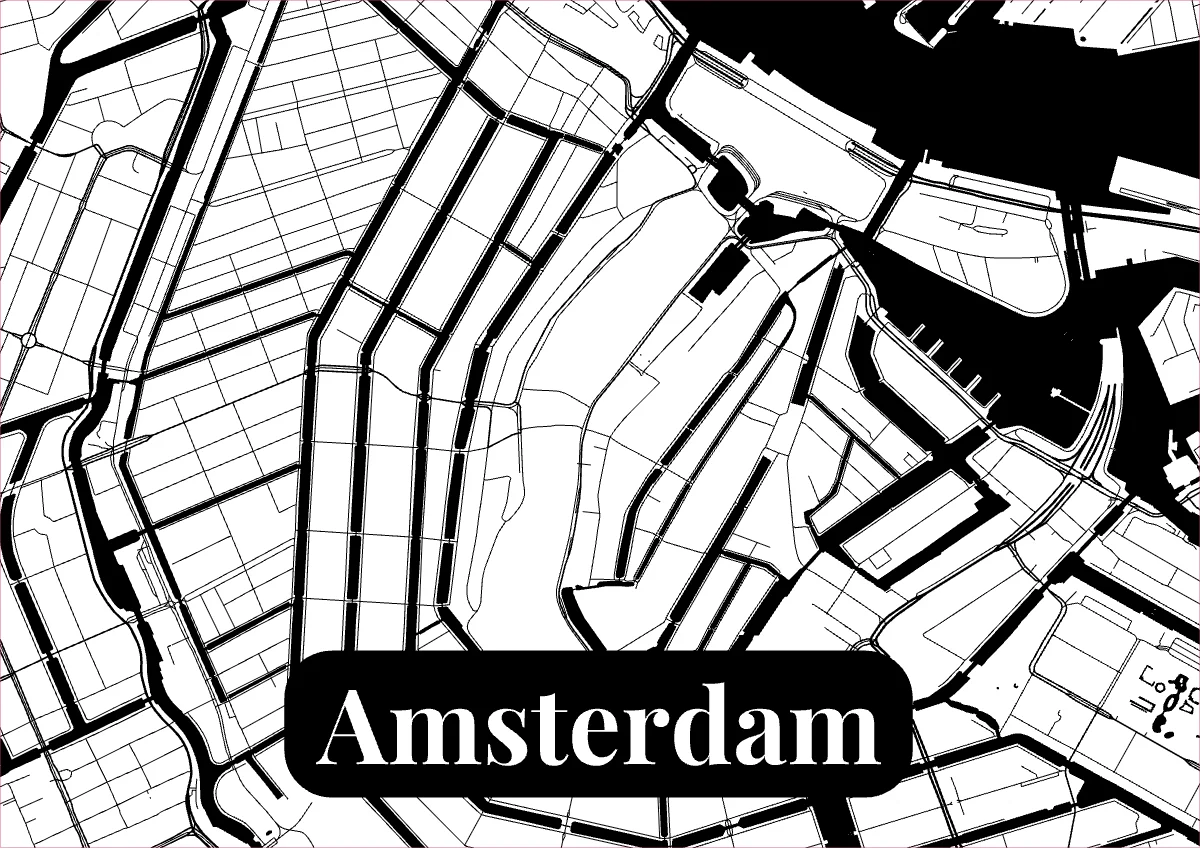
The exported SVG of Amsterdam: black streets and water on white with the city name cut out of a black rounded label
The exported SVG, A4 size

Styles for your title

Pick a style with one click and fine-tune padding, outline and shadow in millimetres.

From city to cut in four steps

  1. Find your place. Search a city or address and drag it into the frame.
  2. Set the size. Width and height in mm, or a circle.
  3. Choose layers and text. Colors per layer, a title in the style you like.
  4. Export and cut. Download the SVG and import it into LightBurn.
Read the full guide

Frequently asked questions

Is LaserMap free?

Yes, completely. Design as many maps as you like and download every SVG for free: no account required, no watermark, no download limit and no subscription.

Does the SVG work in LightBurn?

Yes. The SVG is sized in millimetres and every color is its own layer. Use the LightBurn layer colors in LaserMap and each map layer lands on its own LightBurn layer, ready to set to fill, line or cut.

Can I use it with other laser software?

Yes. The export is a standard SVG with colored, closed shapes, so it also opens in Inkscape and in laser programs that import SVG and group shapes by color.

Can I sell products made with LaserMap?

Yes. The map data comes from OpenStreetMap under the Open Database License, which allows commercial use. Credit “© OpenStreetMap contributors” on the product, its packaging or where you sell it.

Where does the map data come from?

From OpenStreetMap, the free map of the world made by volunteers, served as vector tiles by OpenFreeMap.

Ready to make your map?

About five minutes from search to SVG. Download as often as you like, for free.